Select several images
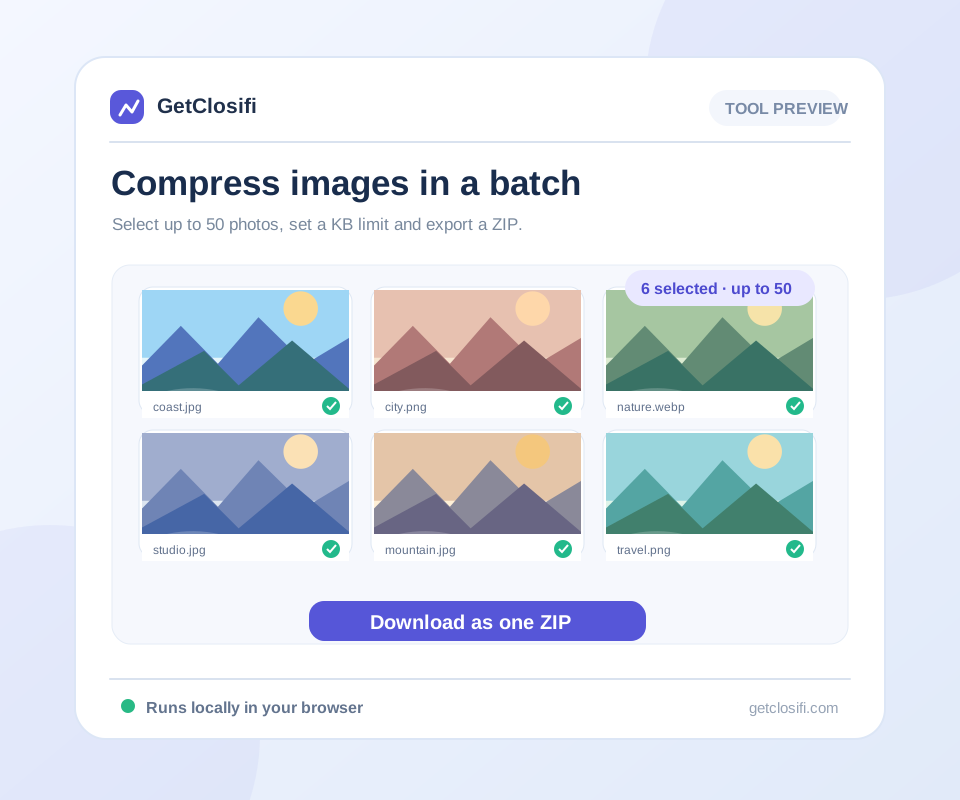
Choose up to 50 images, staying within the 100 MB batch total.
Compress up to 50 images to a chosen KB limit, then download the processed JPEG files together in one ZIP.


or choose a file from your device
Up to 50 images · 20 MB each · 100 MB per batch
The input limits are 20 MB per image, 50 images per batch and 100 MB total. Split larger jobs into smaller groups.
Quick steps
Choose up to 50 images, staying within the 100 MB batch total.
Enter a maximum KB size. Every image is processed separately.
Review the completion message, then save the archive containing your JPEG copies.
A few useful details
If you have a folder of product photos, doing the same compression one image at a time gets tedious. Select a batch, choose the maximum KB for each image, and let the browser work through them.
The limit applies to each photo—not to the finished ZIP. Twenty images with a 100 KB target can add up to around 2 MB of image data, plus a little space for the archive itself.
When processing finishes, download the JPEG copies together in one ZIP. A file that cannot be read is skipped and counted in the message. Leave the tab open, and use smaller batches if your device struggles.
The input limits are 20 MB per image, 50 images per batch and 100 MB total. Split larger jobs into smaller groups.
The ZIP contains already-compressed JPEG files. ZIP packaging is mainly for a convenient single download; it does not promise a further big reduction.
A batch is easier to review when the inputs belong to the same job. Remove files you do not need, convert HEIC images beforehand and avoid mixing a small logo with photographs if you do not want both turned into JPEG. Keep the originals in their own folder.
Every successful photo is processed against the same maximum, but the output dimensions and quality can differ. A detailed image may need more reduction than a plain one. Spot-check several files from the ZIP, especially the pictures with fine text or busy backgrounds.
If some files cannot be read, the completion message counts them as failures while keeping successful results. A ZIP does not mean every selected file was processed. Compare the message and archive contents with your original selection before deleting or moving any source files.
The tab has to decode and process local images and hold the finished copies long enough to package them. Close other heavy tabs or split the job if it becomes slow. Keep this tab open until the archive is ready, then check that the download opens.
Visual examples
Actual sample exports at three quality settings. These examples do not promise a particular KB target for your own image.
An 85% JPEG quality example keeps a generous detail budget. Compare hair, leaves and fine edges before using the export.
Actual sample exports at three quality settings. These examples do not promise a particular KB target for your own image.
A 65% quality example can suit images displayed at smaller sizes. The measured file sizes show whether the export actually saves space.
Actual sample exports at three quality settings. These examples do not promise a particular KB target for your own image.
A 40% example makes compression more aggressive. Look for blocky textures or rough edges and choose a higher quality when needed.
Actual sample exports at three quality settings. These examples do not promise a particular KB target for your own image.
Up to 50 at a time, with a maximum of 20 MB per image and 100 MB for the whole batch.
Each photo is compressed separately to fit the chosen maximum. Detailed images may need lower quality or smaller dimensions than simple ones.
It gives you one download instead of many. The pictures are already compressed, so the ZIP mainly keeps them together.
Convert those to JPG first with HEIC to JPG. The batch compressor uses images the browser can read directly.
The exported copies receive numbered names to keep them distinct inside the ZIP.
Usually the main benefit is keeping the copies together. The JPEG data is already compressed, and the archive adds a little packaging overhead.
Keep working
Control quality and compare the exported size.
Open tool ↗Reduce a JPG, PNG or WebP image to 20 KB or less.
Open tool ↗Reduce a JPG, PNG or WebP image to 50 KB or less.
Open tool ↗Reduce a JPG, PNG or WebP image to 100 KB or less.
Open tool ↗