Choose your photo
Select a JPG, PNG or WebP from your device.
Reduce image size to a KB limit, convert formats and get photos ready to share. Free tools, all in your browser.


or choose a file from your device
Maximum 20 MB per image
The result targets this upper limit. Dimensions may be reduced to fit.
For text or identity documents, zoom in after compression. A smaller file is not useful if the information is unreadable.
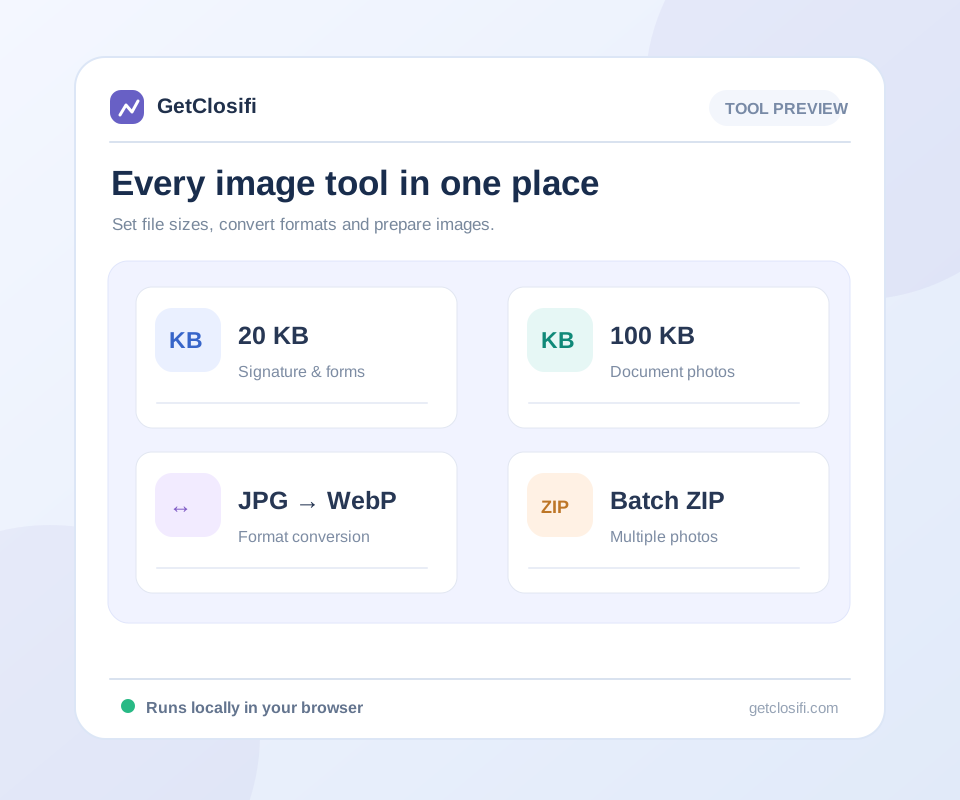
Your everyday image toolkit
Pick what you need. Keep your originals.
Control quality and compare the exported size.
Open tool ↗Reduce a JPG, PNG or WebP image to 20 KB or less.
Open tool ↗Reduce a JPG, PNG or WebP image to 50 KB or less.
Open tool ↗Reduce a JPG, PNG or WebP image to 100 KB or less.
Open tool ↗Reduce a JPG, PNG or WebP image to 200 KB or less.
Open tool ↗Reduce a JPG, PNG or WebP image to 500 KB or less.
Open tool ↗Choose the KB limit that fits your upload.
Open tool ↗Compress up to 50 images and download one ZIP.
Open tool ↗Set pixel dimensions while keeping proportions.
Open tool ↗Read width, height, size and format.
Open tool ↗Calculate image shape and matching dimensions.
Open tool ↗Set JPEG resolution metadata for print workflows.
Open tool ↗Make a JPG copy of a supported iPhone photo.
Open tool ↗Convert JPEG photos to WebP for compatible websites and apps.
Open tool ↗Convert a PNG image to JPEG.
Open tool ↗Turn a WebP image into a widely supported JPEG copy.
Open tool ↗Create a PNG copy of a JPEG image without changing its pixel dimensions.
Open tool ↗Keep the part you need, with a live crop preview.
Open tool ↗Turn a photo 90°, 180° or 270°.
Open tool ↗Mirror an image horizontally or vertically.
Open tool ↗AIAI cutouts with transparent PNG downloads.
Open tool ↗No matching tools. Try another name or category.
Quick steps
Select a JPG, PNG or WebP from your device.
Choose the KB maximum shown in the form or website you are using.
Look at the preview and size, then download the JPEG if it suits your needs.
A few useful details
You have picked a photo, filled in the form, and reached the upload button—then the file is too large. Choose the maximum size the form allows, such as 50 KB or 100 KB, and make a smaller copy here.
The reducer adjusts JPEG quality first. If the photo still does not fit, it makes the dimensions smaller too. A plain portrait usually needs less space than a detailed scene, so two photos with the same dimensions can finish at different sizes.
Check the result before downloading. Faces should still be recognisable, and any writing should be easy to read. If you only need to change the dimensions or file format, use one of the separate tools below instead.
For text or identity documents, zoom in after compression. A smaller file is not useful if the information is unreadable.
Transparency is flattened to white for JPEG output. Use a PNG conversion or the background remover when a transparent result matters.
“File too large” usually points to KB or MB. “Invalid dimensions” points to pixels. “Unsupported format” means the website cannot use that file type. Read the exact message before editing; compressing again will not fix the wrong shape or an unsupported extension.
A screenshot of a photo often includes extra borders, interface text or a different crop. If the original camera photo is available, use that instead. Keep it separately and make copies for each destination, rather than repeatedly editing the latest compressed version.
For a form with several requirements, crop unnecessary space first, set the requested dimensions next, and compress only if the file is still too large. Check the accepted format before starting. This order makes it easier to tell which change solved the problem.
Open the saved copy, not just the preview. Look at the face, signature or product detail that matters, then compare its dimensions and size with the destination’s instructions. A smaller file is only useful if it still contains the information you need.
| What the destination asks for | Start here |
|---|---|
| A file below a KB limit | KB reducer or Custom Image Size Reducer |
| A particular width and height | Crop Image, then Image Resizer |
| JPG instead of HEIC or WebP | The matching format converter |
| An image without its background | AI Background Remover |
Visual examples
Actual sample exports at three quality settings. These examples do not promise a particular KB target for your own image.
An 85% JPEG quality example keeps a generous detail budget. Compare hair, leaves and fine edges before using the export.
Actual sample exports at three quality settings. These examples do not promise a particular KB target for your own image.
A 65% quality example can suit images displayed at smaller sizes. The measured file sizes show whether the export actually saves space.
Actual sample exports at three quality settings. These examples do not promise a particular KB target for your own image.
A 40% example makes compression more aggressive. Look for blocky textures or rough edges and choose a higher quality when needed.
Actual sample exports at three quality settings. These examples do not promise a particular KB target for your own image.
No. Choose your image, process it and download the result. There is no signup step or watermark.
The photo is processed in this browser. The HEIC and AI tools may download extra files to do their work, but they do not upload your photo to a processing service.
Check both requirements. Resize or crop the image to the right dimensions first, then use the KB reducer if it is still too large.
The original file on your device is not changed. Keep it so you can make another copy if the first result loses too much detail.
Renaming only changes the filename. Use a format converter to create a real JPEG file that another app can read.
The browser exports do not deliberately copy camera or location metadata. Keep the original file if that information matters for another workflow.
Keep working
Control quality and compare the exported size.
Open tool ↗Reduce a JPG, PNG or WebP image to 20 KB or less.
Open tool ↗Reduce a JPG, PNG or WebP image to 50 KB or less.
Open tool ↗Reduce a JPG, PNG or WebP image to 100 KB or less.
Open tool ↗