Choose the original
Use the clearest version of the image you have.
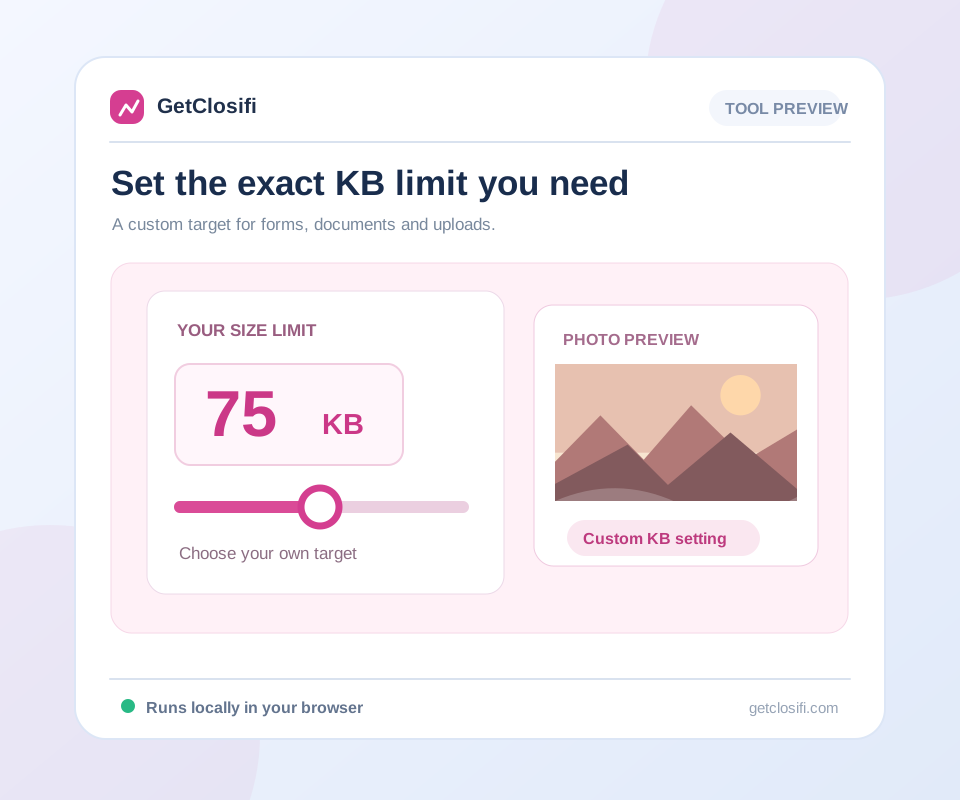
Choose your own KB limit and reduce a photo to fit. Useful when the usual 50, 100 or 200 KB presets are not enough.

or choose a file from your device
Maximum 20 MB per image
A target is an upper limit, not an exact output size.
If a website rejects a file that is very close to its limit, set the target slightly lower. Websites can count KB differently.
Quick steps
Use the clearest version of the image you have.
Type the upper limit you need, such as 80 or 150 KB.
If the form also has a minimum size, compare that with the exported file before saving.
A few useful details
Some forms ask for 80 KB. Others allow 150 KB or give a range rather than one number. Enter the upper limit you need, and this tool will try to make a JPEG that stays under it.
A target is not an exact final size. A simple image might finish well below the limit. If your form asks for a range, compare the export with the minimum as well as the maximum before uploading it.
Very small limits can make text or faces hard to read. Keep the original and check the preview each time. If the website also asks for specific dimensions, deal with those separately in Image Resizer.
If a website rejects a file that is very close to its limit, set the target slightly lower. Websites can count KB differently.
A size limit and a width/height requirement are separate rules. Use Image Resizer if the destination specifies pixels too.
Check whether the website says “less than,” “up to,” or gives a range. These instructions are not interchangeable. Enter the maximum you need here, then compare the result with any minimum and with the required format and dimensions.
If a website rejects an export that is close to its boundary, leave a little room below it. For example, try 145 KB for a 150 KB maximum. That is a troubleshooting choice, not a guarantee; the rejection may be caused by another rule.
A simple signature on white and a detailed outdoor photo will not reach the same limit in the same way. One may fit with a modest quality change, while the other needs fewer pixels. Inspect the actual output rather than relying only on the number you entered.
If the complaint is about pixels, use the resizer. If it is about a file extension, use a converter. If a file must be larger than a minimum, this reducer does not add spare bytes to force it into that range. Identify the failed requirement before trying again.
Visual examples
Actual sample exports at three quality settings. These examples do not promise a particular KB target for your own image.
An 85% JPEG quality example keeps a generous detail budget. Compare hair, leaves and fine edges before using the export.
Actual sample exports at three quality settings. These examples do not promise a particular KB target for your own image.
A 65% quality example can suit images displayed at smaller sizes. The measured file sizes show whether the export actually saves space.
Actual sample exports at three quality settings. These examples do not promise a particular KB target for your own image.
A 40% example makes compression more aggressive. Look for blocky textures or rough edges and choose a higher quality when needed.
Actual sample exports at three quality settings. These examples do not promise a particular KB target for your own image.
Yes. Enter any whole-number target from 1 to 5,000 KB. Very small values may not produce a useful image.
No. It does not add spare bytes to increase a file’s size. This tool is for reducing or re-encoding an image.
Not always. Meeting the KB limit takes priority here. Use Image Compressor if you want to adjust quality without changing dimensions.
This control accepts whole numbers. Choose a slightly smaller whole-number target if you need to stay below a precise boundary.
Check the accepted format, pixel dimensions and any content or framing instructions. A byte limit is only one part of an upload requirement.
Keep working
Control quality and compare the exported size.
Open tool ↗Reduce a JPG, PNG or WebP image to 20 KB or less.
Open tool ↗Reduce a JPG, PNG or WebP image to 50 KB or less.
Open tool ↗Reduce a JPG, PNG or WebP image to 100 KB or less.
Open tool ↗