Upload a clear image
Choose a JPG, PNG or WebP photo with a distinct subject.
Remove a photo’s background on your device. Review the AI cutout on a checkerboard and save a transparent PNG.
 Make room for your subject
Drop your photo here, or browse your device
JPG, PNG or WebP · 20 MB · Up to 24 megapixels
First use downloads the AI engine and a model of about 5 MB. Keep the tab open. AI object selection downloads about 14 MB when first used. Tap objects to keep them, check the selection, and apply. Brushes are available for corrections.
The input limit is 20 MB and 24 megapixels. If a photo is too large, resize it before removing the background.
Quick steps
Choose a JPG, PNG or WebP photo with a distinct subject.
Click Remove background and keep the tab open while the model works.
Check the edges on the checkerboard and download the transparent PNG.
A few useful details
A product against a plain wall is usually easier to separate than a person with loose hair against a busy background. Choose the clearest photo you have, then let the AI estimate which pixels belong to the foreground.
Look closely at the result on the checkerboard. Glass, fine hair, shadows and objects that blend into the background can be difficult. Use AI object selection to tap each object you want to keep. Review the green preview, try another selection if needed, then keep the object and apply. Outline selection and brushes are also available.
The first use downloads the AI engine and a model of about 5 MB. The photo is processed on your device, with no paid photo-processing API. Keep the tab open until it finishes, then download the transparent PNG.
The input limit is 20 MB and 24 megapixels. If a photo is too large, resize it before removing the background.
A checkerboard indicates transparency in the preview. It is not painted into the downloaded PNG.
Choose a photo where the person or object is easy to distinguish from its surroundings. Low contrast, motion blur and overlapping subjects make the boundary less obvious. A different source photo can help more than repeatedly processing the same difficult image.
A cutout can look fine in the middle while missing a thin strap, loose hair or part of an object. Look around the whole outline on the checkerboard. Also watch for pieces of background left between arms, handles or other gaps in the subject.
The checkerboard is only a viewing surface for transparent pixels. It will not appear in the PNG. The tool estimates which pixels to keep; it does not add a new studio background or retouch the subject. Use the foreground selection and brushes to repair the cutout.
The first use needs to download the AI runtime and model before processing. A weak connection can delay that stage; an older device can take longer on inference. Keep the tab open. If an image exceeds the size or pixel limits, make a smaller copy in Image Resizer first.
Visual examples
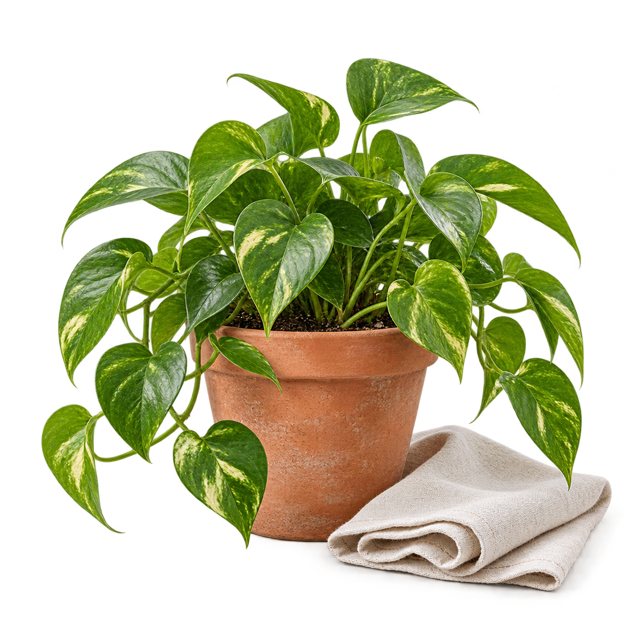
Illustrative compositions made from an original isolated product image. These are visual guides, not recorded AI-removal results; your live result may differ.
The checkerboard on the right represents transparency. Use a transparent PNG when the product needs to sit on a new design.
Illustrative compositions made from an original isolated product image. These are visual guides, not recorded AI-removal results; your live result may differ.
Inspect the spaces between leaves as well as the outside outline. Actual AI removal can leave imperfect fine edges.
Illustrative compositions made from an original isolated product image. These are visual guides, not recorded AI-removal results; your live result may differ.
A transparent product can be placed on a website, catalogue or poster without a coloured rectangle around it.
Illustrative compositions made from an original isolated product image. These are visual guides, not recorded AI-removal results; your live result may differ.
No. It is there to make transparent areas easy to see. The PNG contains transparency, not a checkerboard picture.
The model estimates the subject. Fine edges, low contrast and overlapping objects can make that estimate imperfect.
This implementation does not call a paid background-removal API. It uses your device for processing and downloads model files over your internet connection.
No. Choose one still JPG, PNG or WebP image at a time.
Yes. Use Select foreground and tap around the person or objects you want to keep, then Apply selection. Use Restore or Erase to refine the result.
Not reliably. A shadow can be included in the estimated subject. Inspect the result rather than assuming a perfectly clean product cutout.
Keep working
Control quality and compare the exported size.
Open tool ↗Reduce a JPG, PNG or WebP image to 20 KB or less.
Open tool ↗Reduce a JPG, PNG or WebP image to 50 KB or less.
Open tool ↗Reduce a JPG, PNG or WebP image to 100 KB or less.
Open tool ↗